Capture Expense provides a two-way integration with Microsoft Dynamics 365 Business Central. We import key setup information from Business Central into your Capture organisation, and once expenses have completed the approval process, you can export them back into Business Central as purchase invoices.
This guide explains how to connect Capture to Business Central, how the sync works, and what must be configured before exporting expenses.
Sections
Connecting Business Central
Fetching Records from Business Central (Initial Sync)
People & Vendor Mapping
Categories (GL Accounts)
Dimensions (Tags)
VAT Configuration
Exporting Expenses to Business Central
Connecting Business Central
You can access the Business Central integration from the Integrations page.
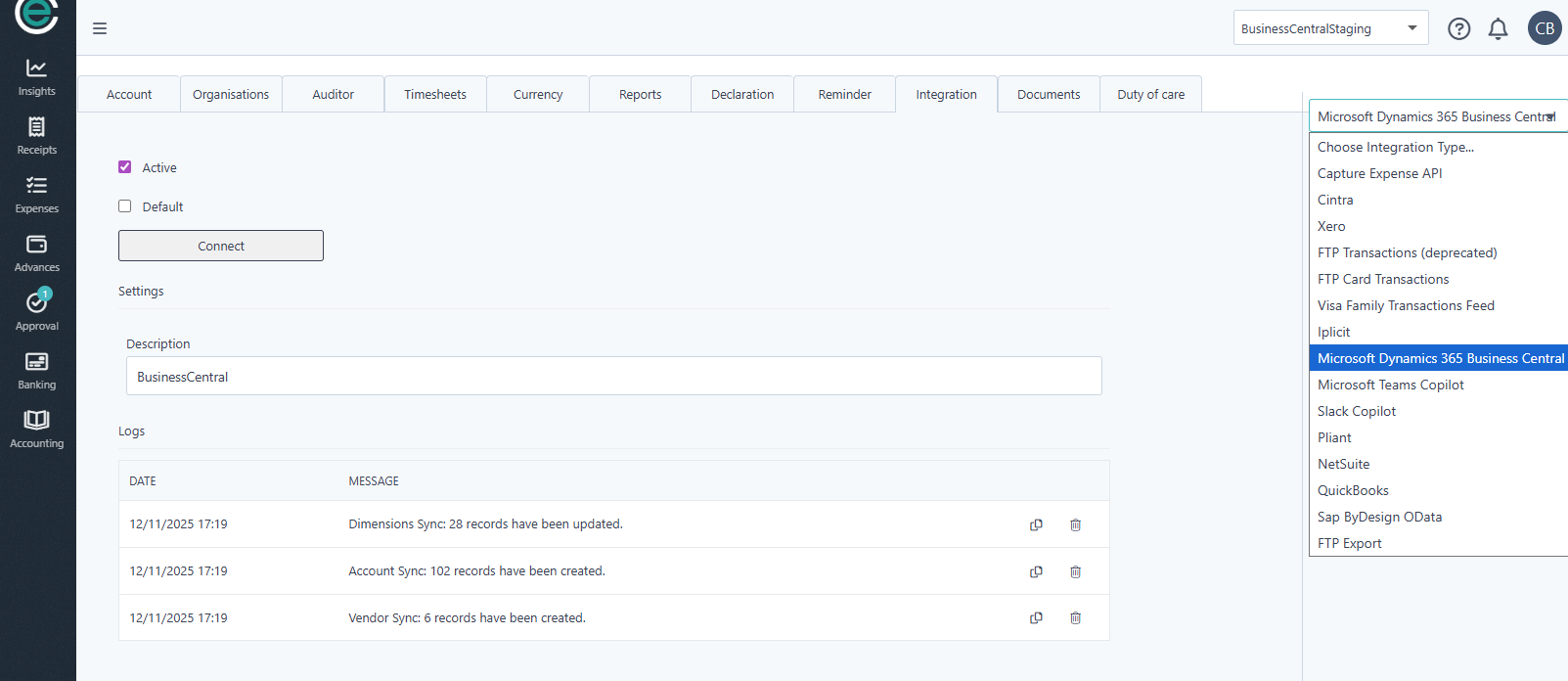
Click Connect, and you will be redirected to the Microsoft login page.
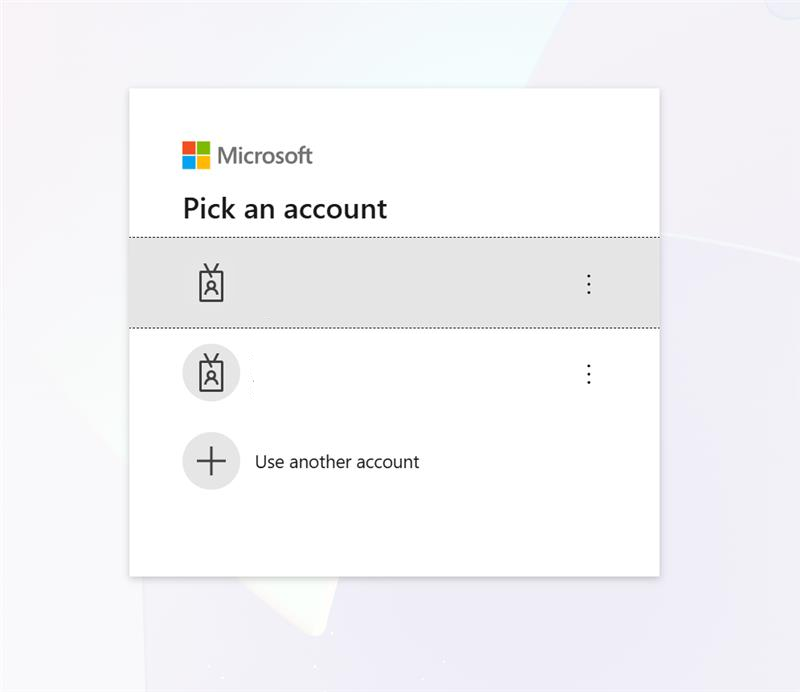
Make sure the account you use has the appropriate permissions to authorise third-party app connections. If the user does not have sufficient permissions, the connection will fail.
Once authorisation is completed, you will return to Capture and see Business Central listed as a connected integration.
Fetching Records from Business Central (Initial Sync)
After connecting, open the Business Central integration and select Record Sync on the right-hand side.
Capture will import the following from Business Central:
GL Accounts → created as Categories in Capture
Dimensions → imported as Tags
Vendors → matched to People records where emails align
Your sync results will appear in the activity log.
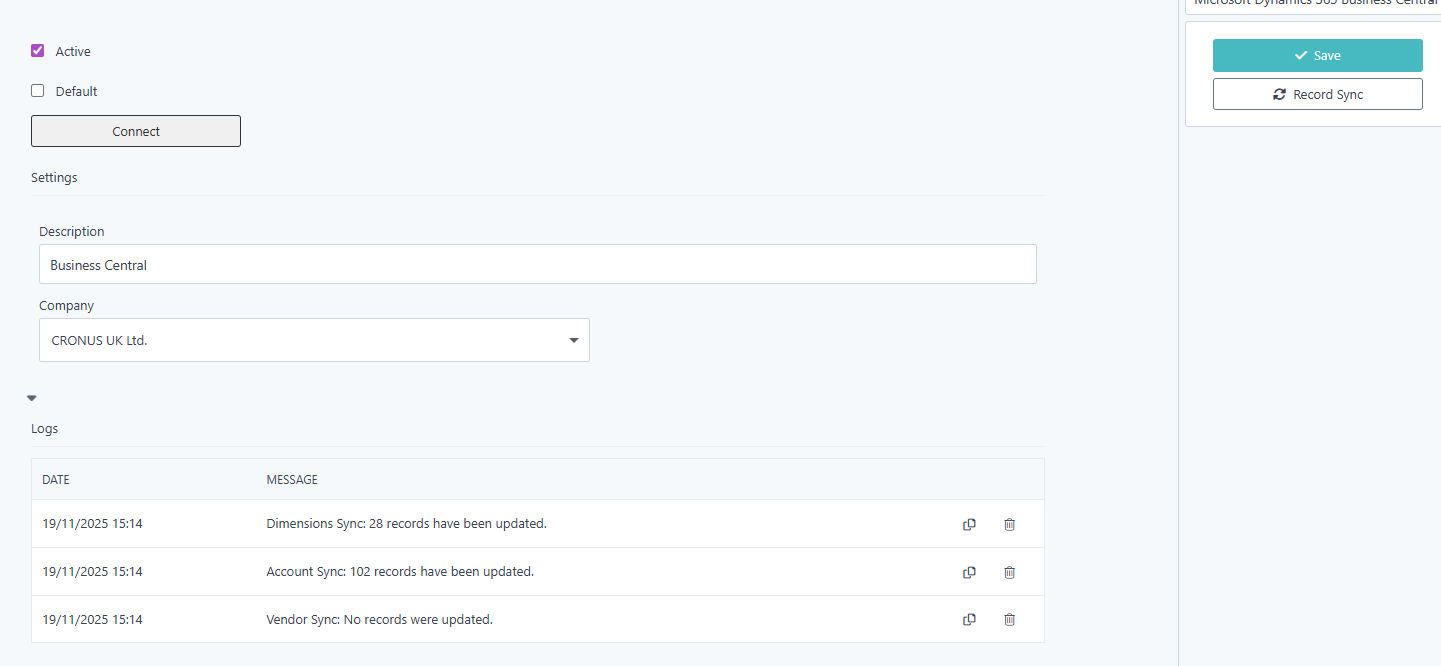
You can run the sync again at any time if new items are added in Business Central.
People & Vendor Mapping
To prepare your people records for exporting you need to make sure that they are associated to a Business Central Vendor.
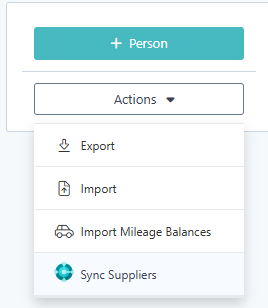
Running Supplier Sync performs an automated vendor matching process:
Capture will look at the email address on each Vendor in Business Central
If a matching email exists on a Capture person record, Capture links the person to the vendor automatically
You can verify or edit this mapping by opening a person record and checking the Business Central Supplier field.
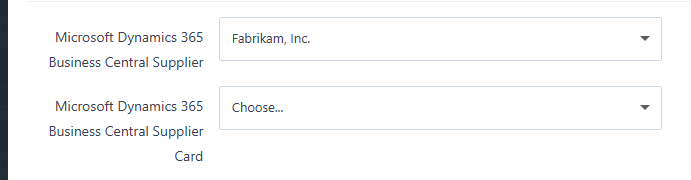
If a vendor is not automatically linked, open the person record and manually choose the correct vendor from the supplier dropdown.
Supplier Card (Credit Card Expenses)
Capture does not automatically assign a Supplier Card for credit card transactions. If the claimant is submitting credit card expenses, you must manually set the Supplier Card on their record. These accounts typically differ from standard vendor accounts.
Categories (GL Accounts)
Business Central GL accounts are imported into Capture as Categories.
When submitting expenses intended for Business Central export, you must use categories that originate from Business Central. You can re-sync them at any time.
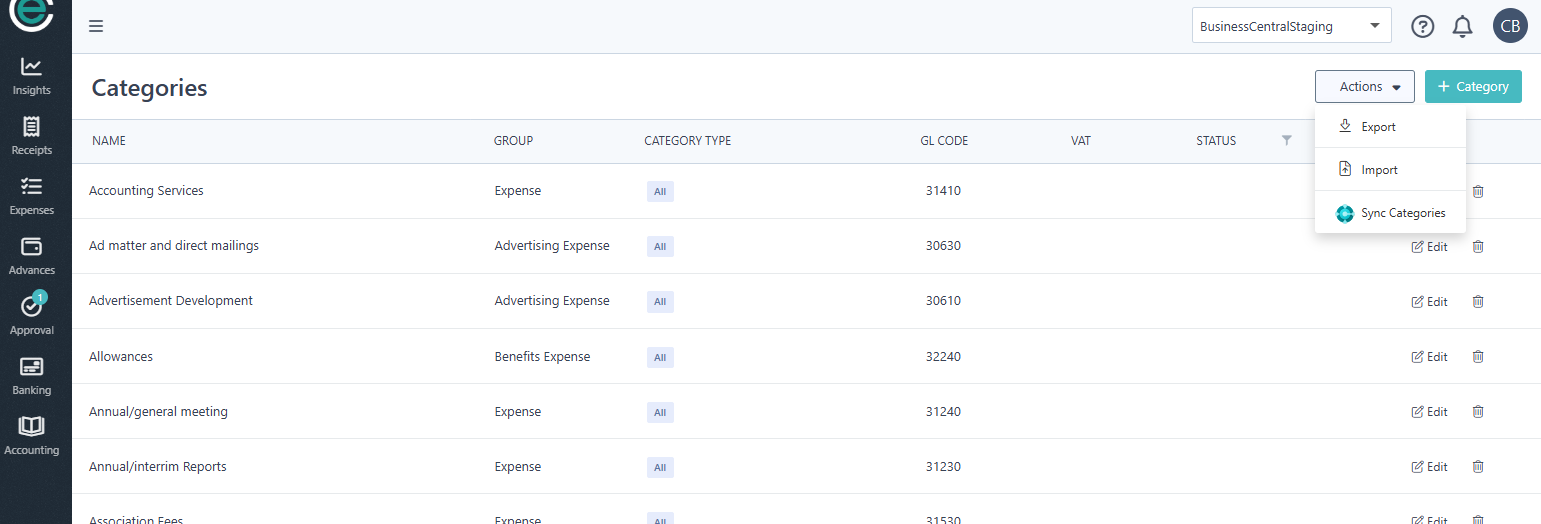
Recommendation:
Treat Business Central as the single source of truth. If you need a new category in Capture, create the GL account in Business Central first, then sync it into Capture.
Dimensions (Tags)
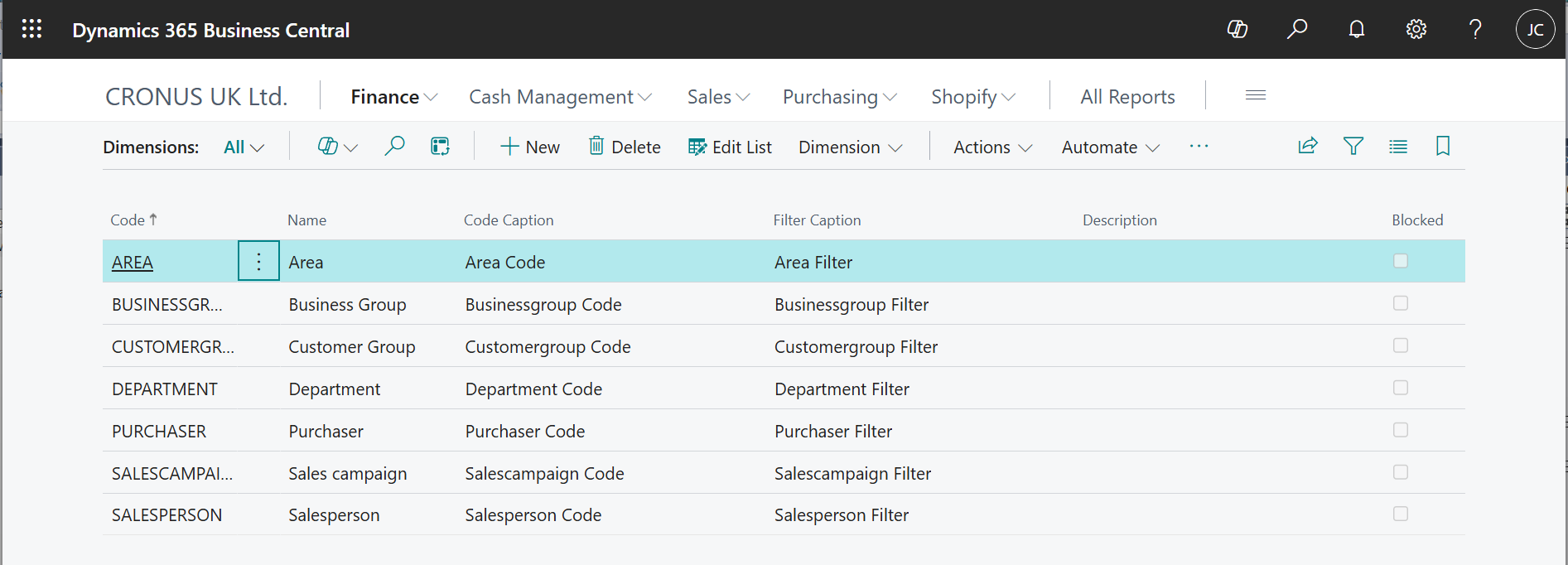
Your Business Central dimensions are imported as Tags, and can be configured in the tag setup page.
 ↓
↓
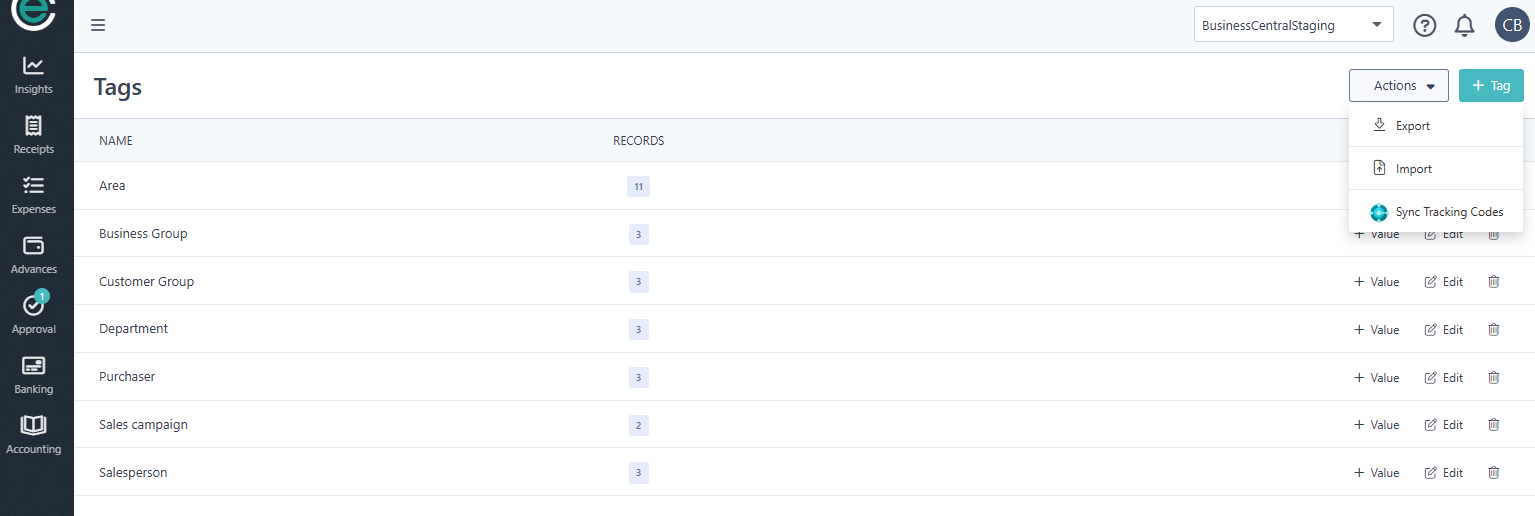
You can associate your Business Central Dimensions with an exported expense in two ways:
1. Assigned to a Person
Best when a user consistently belongs to a value of that dimension — for example, a user may have the value IT for the Department dimension.
Setup > People > Edit > Scroll down to find the relevant dimension tag > Select their default
2. Selected on an Expense
Useful when the dimension varies per transaction. To enable selection on expenses:
Open the Tags settings
Turn on Allow edit on expense
The Tag field will appear on the expense form
How Dimension Tags Are Chosen on Export
When exporting dimension tags on expenses to Business Central, Capture uses the following order:
- If a Tag was selected on the expense, that value will be exported
- If the tag was chosen on the expense, Capture will then use the dimension tag assigned to the person
- If neither is available, no dimension tag will be applied
You can configure this behaviour for all dimensions imported from Business Central.
VAT Configuration
VAT setup requires manual configuration as Business Central does not expose VAT codes in a simple, consistent way via API.
Understanding VAT Posting Groups
Each vendor in Business Central is assigned a VAT Posting Group. These posting groups determine which VAT codes can be used for expenses associated with that vendor.
You can find VAT Posting Groups defined in your Business Central VAT setup.

For simplicity, we recommend that all employees who submit expenses have their associated vendor belong to the same VAT posting group. This reduces the risk of using incompatible VAT codes.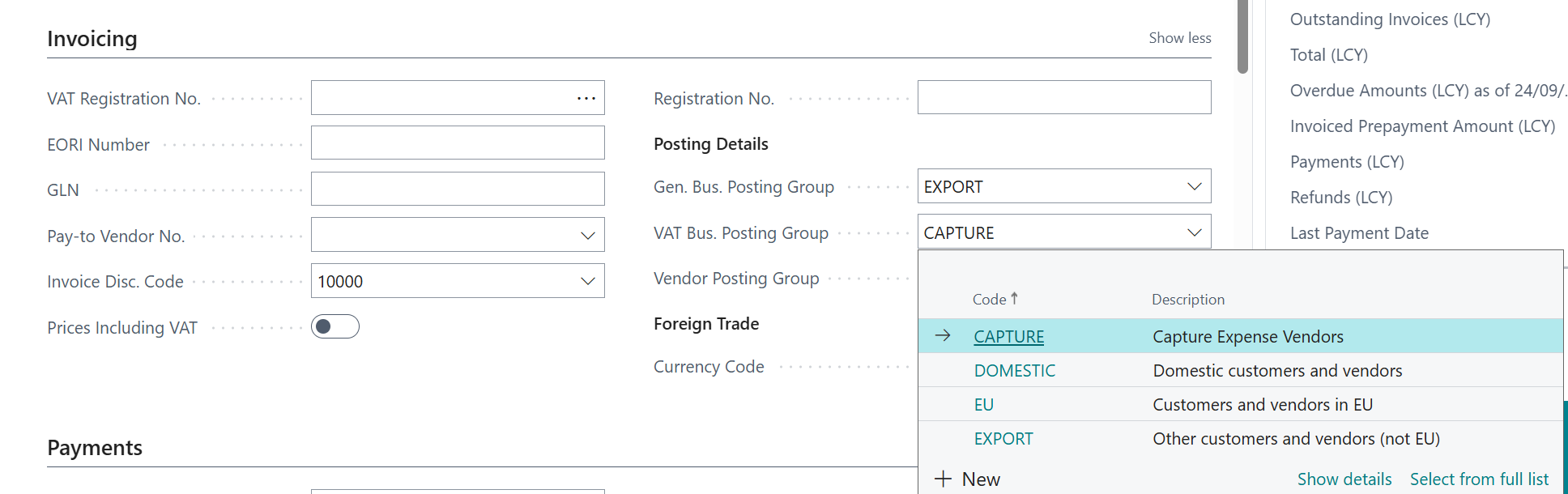
Configuring VAT Codes in Capture
After identifying the correct VAT posting group for your employees (from Business Central), configure VAT records in Capture:

↓
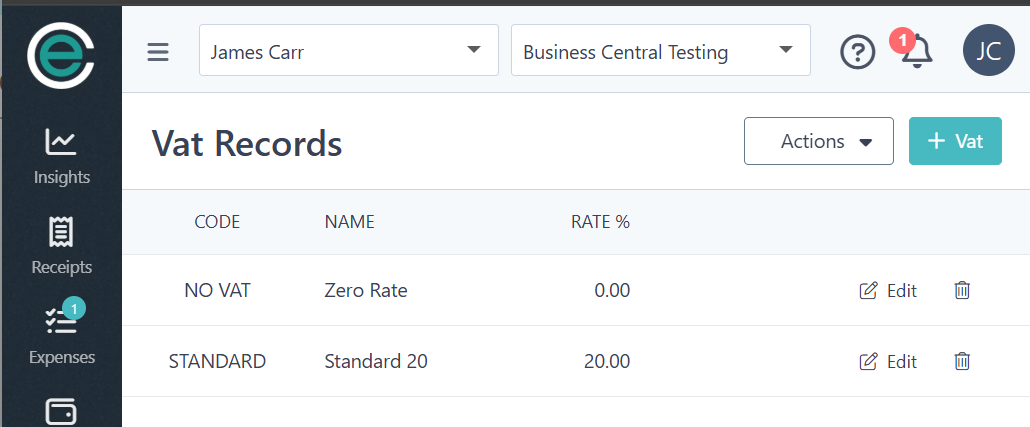
Add each VAT code manually, making sure:
The VAT Code in Capture exactly matches the identifier used in Business Central
These codes are sent with your expenses when exporting
How VAT Works During Export
Capture does not calculate VAT when exporting to Business Central.
Instead:
Capture sends the GL account, VAT Code and the Net amount of the expense.
Business Central performs its own VAT calculation
As long as the correct VAT code and posting group are used, the VAT amount in Business Central should match the Capture entry.
If the VAT code does not belong to the vendor’s VAT posting group, the export will fail.
Exporting Expenses to Business Central
Once expenses have been submitted, fully approved, and have reached the Accounting area, they are ready for export.
Before exporting, confirm:
The expense uses a Business Central category (GL account)
If VAT applies, a Business Central VAT Code from the user’s VAT posting group has been selected
For reimbursements - the user is linked to a Business Central Supplier Code
For credit card transactions - the user is linked to a Business Central Supplier Card Code
When everything is ready you can export your expenses using the Microsoft Dynamics 365 Business Central export format.
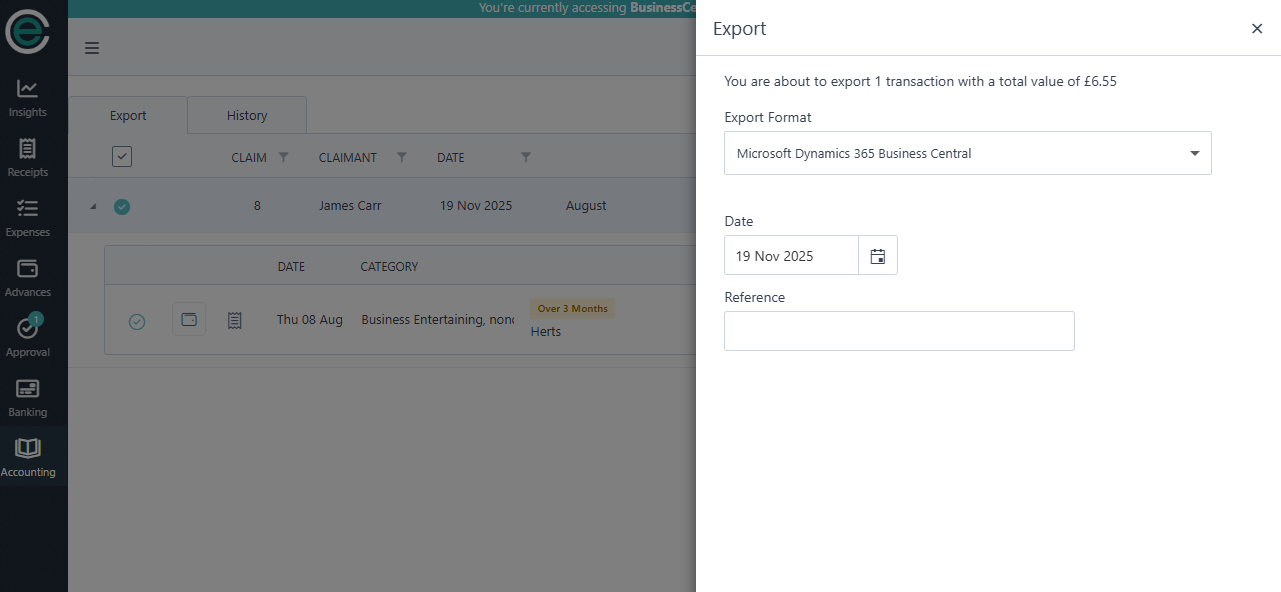
What Happens in Business Central
When expenses are exported:
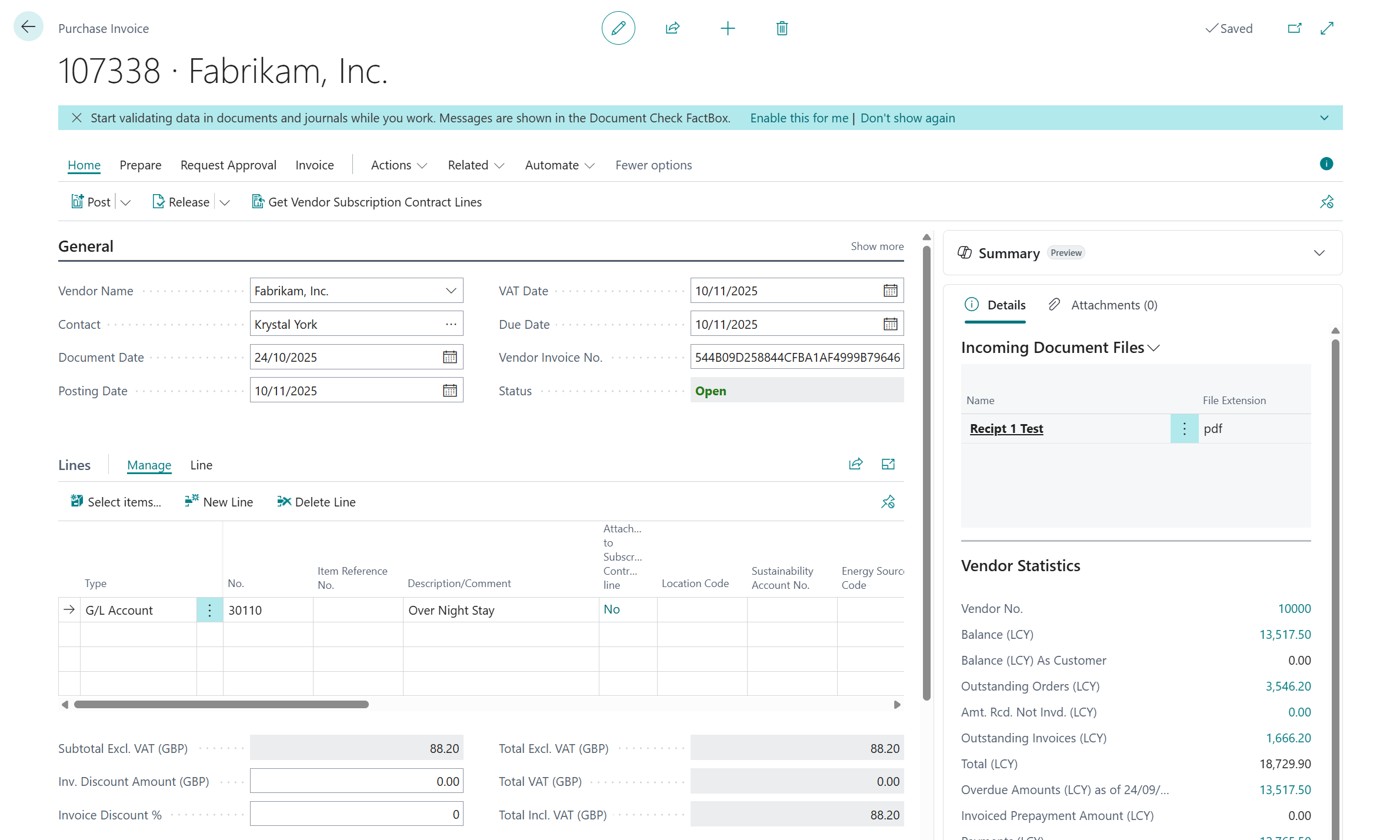
Reimbursement claims are created as Purchase Invoices against the users selected Business Central Supplier (Vendor)
Credit card expenses are also created as Purchase Invoices against the users selected Business Central Supplier Card (Vendor)
All receipt attachments are included and will appear on the invoice record
Was this article helpful?
That’s Great!
Thank you for your feedback
Sorry! We couldn't be helpful
Thank you for your feedback
Feedback sent
We appreciate your effort and will try to fix the article