What happens once you have linked your Pliant account to Capture Expense?
With Finance Permission in Banking, the Pliant account will be displayed below the right-side action menu .
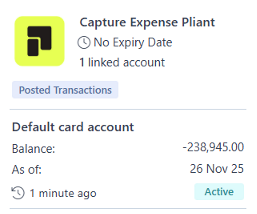
Users with Finance permissions
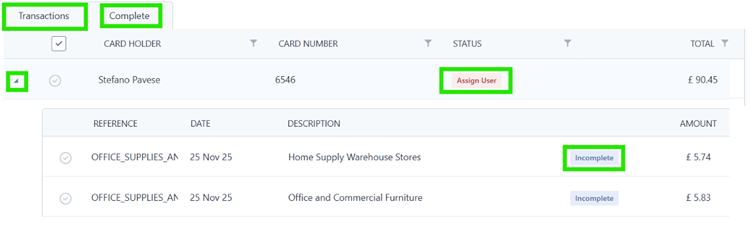
From the Banking>Transaction tab, you can see the total spend of all unapproved transactions for each card holder.
You can drop down the total row to see individual transaction and the status: incomplete (meaning the transaction is still in the card holders Expenses>Drafts) and submitted (meaning the transaction is in the approval process)
Transactions are displayed in Banking instantly the card is used.
The Banking>Complete tab is available to view all claims that have been fully approve.
Additional Functions
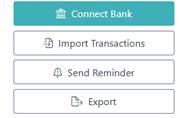
Reminder: You can select an individual card holder or all card holders and use the Send Reminder button in the right side actions menu to send notifications to remind card holders to submit their card expenses.
Export: provides you with the option to export the transaction data
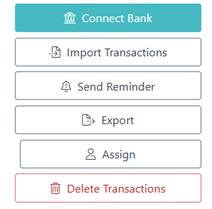
Assign: this option appears in the right-side action menu when you select a card holder and can be used to assign a user to a card. Press the Assign button and a list of all users will appear. Use the +Add option to allocate the card.
Delete Transaction: this option appears in the right-side action menu when you select a card holder and can be used to delete selected transactions.
Allocating cards to users.
With Admin permissions:
Go to Setup>People>select a user who is to be allocated a card>press the Card button in the right-side actions menu, a pop out box will appear>use the Pliant Card drop down list to select the correct card>Save
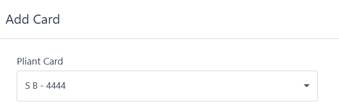
The user’s People record will now display a card icon to the right of their name. This action will trigger a new menu item to appear for the user Receipts.
Was this article helpful?
That’s Great!
Thank you for your feedback
Sorry! We couldn't be helpful
Thank you for your feedback
Feedback sent
We appreciate your effort and will try to fix the article